AI + Remotion 视频制作完整教程

什么是 Remotion?
Remotion 是一个基于 React 的视频制作框架。它的核心思想很简单 —— 用写前端的方式写视频。
每个视频帧就是一个 React 组件的一次渲染。你用 JSX 写布局、用 CSS 做样式、用 React Hooks 做动画,最后 Remotion 把这些帧合成一个 MP4。
这意味着:
- 不需要 Premiere、After Effects 等传统剪辑软件
- 视频可以像代码一样版本管理、复用组件
- 可以接入任意数据源,批量生成个性化视频
- 最关键的是:可以无缝对接 AI 工具链
为什么 AI + Remotion 是绝配?
传统视频制作的三个痛点:
- 写脚本 → AI 生成
- 配音旁白 → TTS 合成
- 逐帧剪辑 → Remotion 代码化
把三者串联起来,就形成了一条全自动视频生产线:
AI 写文案 → TTS 生成音频 → Remotion 根据文案+音频渲染视频下面我们一步步搭建这条流水线。
第一步:环境搭建
1. 创建 Remotion 项目
npx create-video@latest my-ai-video
cd my-ai-video
npm start
启动后浏览器自动打开 http://localhost:3000,你会看到 Remotion 的预览界面。
2. 安装 TTS 依赖
我们使用 edge-tts 来做中文语音合成,音色自然且免费:
pip install edge-tts推荐中文音色:zh-CN-YunxiNeural(男声,沉稳自然)或 zh-CN-XiaoxiaoNeural(女声,清晰活泼)。
3. 项目结构
my-ai-video/
├── src/
│   ├── index.ts          # 注册所有 Composition
│   ├── Root.tsx          # 根组件
│   ├── compositions/
│   │   └── MyVideo.tsx   # 你的视频组件
│   └── assets/
│       └── audio/        # TTS 生成的音频
├── scripts/
│   └── generate-tts.py   # TTS 生成脚本
└── out/                  # 渲染输出
第二步:写第一个 Remotion 视频
先写一个带标题和说明文字的简单视频:
// src/compositions/MyVideo.tsx
import { AbsoluteFill, useCurrentFrame, useVideoConfig, spring, interpolate } from "remotion";

export const MyVideo = () => {
  const frame = useCurrentFrame();
  const { fps } = useVideoConfig();

  // 标题从下方弹入
  const titleY = spring({
    frame,
    fps,
    config: { damping: 12 },
  });
  const titleOffset = interpolate(titleY, [0, 1], [100, 0]);

  // 副标题渐显
  const subtitleOpacity = interpolate(frame, [15, 30], [0, 1], {
    extrapolateRight: "clamp",
  });

  return (
    <AbsoluteFill
      style={{
        backgroundColor: "#1a1a2e",
        fontFamily: "sans-serif",
      }}
    >
      {/* 标题 */}
      <div
        style={{
          position: "absolute",
          top: "35%",
          width: "100%",
          textAlign: "center",
          transform: `translateY(${titleOffset}px)`,
        }}
      >
        <h1
          style={{
            fontSize: 72,
            color: "#e94560",
            margin: 0,
          }}
        >
          AI + Remotion
        </h1>
      </div>

      {/* 副标题 */}
      <div
        style={{
          position: "absolute",
          top: "55%",
          width: "100%",
          textAlign: "center",
          opacity: subtitleOpacity,
        }}
      >
        <p style={{ fontSize: 32, color: "#a0a0b0" }}>
          用代码生成视频的新范式
        </p>
      </div>
    </AbsoluteFill>
  );
};
注册到 index.ts:
// src/index.ts
import { registerRoot } from "remotion";
import { RemotionRoot } from "./Root";
import { MyVideo } from "./compositions/MyVideo";

registerRoot(RemotionRoot);

// 在 Root.tsx 中
import { Composition } from "remotion";
import { MyVideo } from "./compositions/MyVideo";

export const RemotionRoot = () => (
  <>
    <Composition
      id="MyVideo"
      component={MyVideo}
      durationInFrames={150} // 30fps = 5 秒
      fps={30}
      width={1080}
      height={1920}  // 竖屏,适合抖音
    />
  </>
);
预览一下:
npm start你应该能看到标题从下方弹入、副标题渐显的动画效果。
第三步:接入 AI 生成文案
用 AI 写视频脚本
你可以用任何大模型来生成视频脚本。以下是一个 prompt 示例:
你是一个科普视频脚本作者。请为一段 60 秒的短视频写脚本,
主题是"Transformer 注意力机制如何工作"。

要求:
- 每个句子独立一行
- 每行不超过 20 个字
- 语言通俗易懂
- 共 10-12 句
典型输出:
AI 大模型为什么这么聪明
秘密就藏在注意力机制里
想象你在读一本书
注意力让你只看重要的段落
Transformer 也是这样工作的
它会计算每个词和其他词的关系
这叫自注意力 Self-Attention
每个词都有一个 Query 查询向量
还有一个 Key 键向量
Query 和 Key 越匹配
这个词就越受关注
这就是 AI 理解上下文的关键
用 TTS 为每句话配音
# scripts/generate-tts.py
import asyncio
import edge_tts
import json

# AI 生成的脚本
script = [
    "AI 大模型为什么这么聪明",
    "秘密就藏在注意力机制里",
    "想象你在读一本书",
    "注意力让你只看重要的段落",
    "Transformer 也是这样工作的",
    "它会计算每个词和其他词的关系",
    "这叫自注意力 Self-Attention",
    "每个词都有一个 Query 查询向量",
    "还有一个 Key 键向量",
    "Query 和 Key 越匹配",
    "这个词就越受关注",
    "这就是 AI 理解上下文的关键",
]

async def generate_audio(text, output_path):
    voice = "zh-CN-YunxiNeural"
    communicate = edge_tts.Communicate(text, voice)
    await communicate.save(output_path)

async def main():
    for i, line in enumerate(script):
        path = f"../public/audio/line_{i:02d}.mp3"
        await generate_audio(line, path)
        print(f"Generated: {path}")

    # 保存时间信息
    durations = []
    for i in range(len(script)):
        durations.append(len(script[i]) / 4.0)  # 按字数估算时长

    with open("../public/audio/timing.json", "w") as f:
        json.dump({"lines": script, "durations": durations}, f)

asyncio.run(main())
运行:
python scripts/generate-tts.py第四步:组装完整的 AI 视频
现在把 AI 生成的脚本 + TTS 音频 + Remotion 动画组合起来:
// src/compositions/AIKnowledgeVideo.tsx
import {
  AbsoluteFill,
  Audio,
  Sequence,
  useCurrentFrame,
  useVideoConfig,
  interpolate,
  spring,
} from "remotion";
import scriptData from "../../public/audio/timing.json";

// 卡片式字幕组件
const SubtitleCard = ({ text, frame, index }: {
  text: string;
  frame: number;
  index: number;
}) => {
  const { fps } = useVideoConfig();
  const enter = spring({ frame, fps, config: { damping: 20 } });
  const scale = interpolate(enter, [0, 1], [0.8, 1]);
  const y = interpolate(enter, [0, 1], [30, 0]);

  return (
    <div
      style={{
        position: "absolute",
        bottom: "15%",
        width: "100%",
        display: "flex",
        justifyContent: "center",
        transform: `translateY(${y}px) scale(${scale})`,
      }}
    >
      <div
        style={{
          background: "rgba(233, 69, 96, 0.9)",
          borderRadius: 16,
          padding: "24px 48px",
          maxWidth: "80%",
          textAlign: "center",
        }}
      >
        <p
          style={{
            fontSize: 28,
            color: "#fff",
            margin: 0,
            fontWeight: 600,
            letterSpacing: 2,
          }}
        >
          {text}
        </p>
      </div>
    </div>
  );
};

export const AIKnowledgeVideo = () => {
  const { fps } = useVideoConfig();
  const lines = scriptData.lines;
  const durations = scriptData.durations;

  let currentFrame = 0;
  const sequences = lines.map((line, i) => {
    const durationFrames = Math.ceil(durations[i] * fps);
    const startFrame = currentFrame;
    currentFrame += durationFrames;
    return { line, startFrame, durationFrames, index: i };
  });

  return (
    <AbsoluteFill
      style={{
        background: "linear-gradient(135deg, #0f0c29, #302b63, #24243e)",
      }}
    >
      {/* 背景标题 */}
      <div
        style={{
          position: "absolute",
          top: "8%",
          width: "100%",
          textAlign: "center",
        }}
      >
        <h1 style={{ fontSize: 48, color: "#fff", margin: 0 }}>
          Transformer 注意力机制
        </h1>
      </div>

      {/* 逐句展示 */}
      {sequences.map(({ line, startFrame, durationFrames, index }) => (
        <Sequence
          key={index}
          from={startFrame}
          durationInFrames={durationFrames}
        >
          <Audio src={`/audio/line_${String(index).padStart(2, "0")}.mp3`} />
          <SubtitleCard
            text={line}
            frame={useCurrentFrame()}
            index={index}
          />
        </Sequence>
      ))}
    </AbsoluteFill>
  );
};
第五步:渲染输出
# 本地渲染
npx remotion render src/index.ts AIKnowledgeVideo out/knowledge-video.mp4

# 指定参数
npx remotion render src/index.ts AIKnowledgeVideo out/knowledge-video.mp4 \
  --props='{"customTitle": "AI 工作原理"}' \
--crf=18渲染完成后,out/knowledge-video.mp4 就是你用 AI + 代码生成的视频。
完整工具链总结
┌──────────────────────────────────────────────────────┐
│                  AI + Remotion 视频生产线              │
├──────────┬──────────────┬──────────────┬─────────────┤
│ 1. AI 写 │ 2. TTS 配音  │ 3. Remotion  │ 4. 渲染输出 │
│   脚本   │  edge-tts    │  动画+合成   │   MP4 视频  │
├──────────┼──────────────┼──────────────┼─────────────┤
│ ChatGPT  │ zh-CN-Yunxi  │ React 组件   │  1080×1920  │
│ Claude   │ Xiaoxiao     │ spring 动画  │  30fps      │
│ DeepSeek │ 美式/英式    │ 卡片字幕     │  H.264      │
└──────────┴──────────────┴──────────────┴─────────────┘
进阶玩法
1. 视频可无限复用
因为是纯代码,你可以用同一个模板批量生成不同主题的视频:
# 同一个组件,换一组 props 就是一个新视频
npx remotion render index.ts ExplainVideo out/transformer.mp4 \
  --props='{"topic": "transformer"}'
npx remotion render index.ts ExplainVideo out/sorting.mp4 \
  --props='{"topic": "sorting"}'
2. 服务端自动化
把 Remotion 部署到服务器上,用户输入一个主题,后台自动生成视频:
// Express API 示例
import { renderMedia } from "@remotion/renderer";

app.post("/api/generate-video", async (req, res) => {
  const { topic } = req.body;

  // 1. 调用 AI 生成脚本
  const script = await generateScript(topic);

  // 2. 生成 TTS 音频
  await generateTTS(script);

  // 3. 渲染视频
  await renderMedia({
    composition: { id: "ExplainVideo", ... },
    outputLocation: `out/${topic}.mp4`,
    inputProps: { topic, script },
  });

  res.json({ url: `/videos/${topic}.mp4` });
});
3. 配合 Whisper 生成字幕
先用 Whisper 转录音频,再用 Remotion 的 @remotion/captions 做 TikTok 风格的字幕高亮。
# 转录
whisper audio.mp3 --model medium --language zh --output_format srt

# Remotion 加载 SRT 并渲染字幕
工作流程图
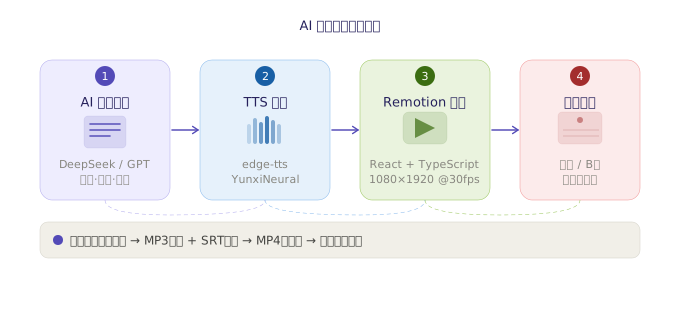
上图展示了从 AI 生成文案 → TTS 配音 → Remotion 渲染 → 最终视频的完整流程。
小结
Remotion 把视频制作变成了软件开发。配合 AI 工具链,你完全可以做到:
- 写一个 prompt → 得到一组脚本
- 脚本自动转为 TTS 音频
- 代码把脚本和音频组装成视频
- 一键渲染输出 MP4
这条流水线特别适合:知识科普短视频、产品演示视频、自动化营销内容、数据可视化视频等场景。
作为程序员,这可能是你切入视频创作最舒服的姿势。
- Title: AI + Remotion 视频制作完整教程
- Author: Rxw
- Created at : 2026-06-05 14:17:00
- Updated at : 2026-07-23 11:31:41
- Link: https://rxw2023-github-io.pages.dev/2026/06/05/AI-Remotion视频制作/
- License: This work is licensed under CC BY-NC-SA 4.0.